Search Jobs Apply Now

How to Submit Your Weekly Timesheet in iTraveler by TLC

Rectangle 4834
Step-by-Step Guide Using the iTraveler by TLC Mobile App
1
Open the iTraveler app on your device.
Enter your login credentials to sign in.
Open the Timesheet section.
Select the Timesheet section from the main menu.
2
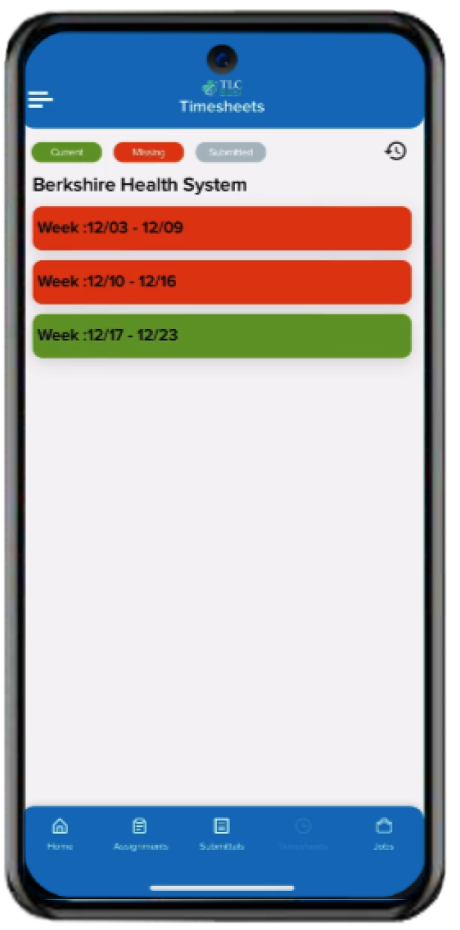
Select the Correct Week.
Choose the week for which you are submitting your hours (e.g., 12/10–12/16).
Enter Your Daily Work Hours.
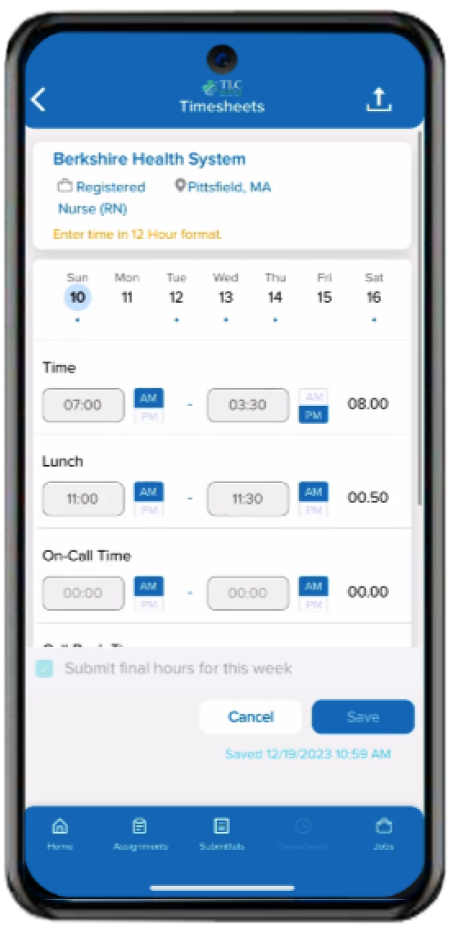
Example
Sunday: Work Hours: 7:00 a.m. – 3:30 p.m.
Lunch Break: 11:00 a.m. – 11:30 a.m.
No on-call or callback hours.
Monday: No hours worked.
Tuesday: Work Hours: 7:00 a.m. – 3:30 p.m.
Lunch Break: 11:00 a.m. – 11:30 a.m.
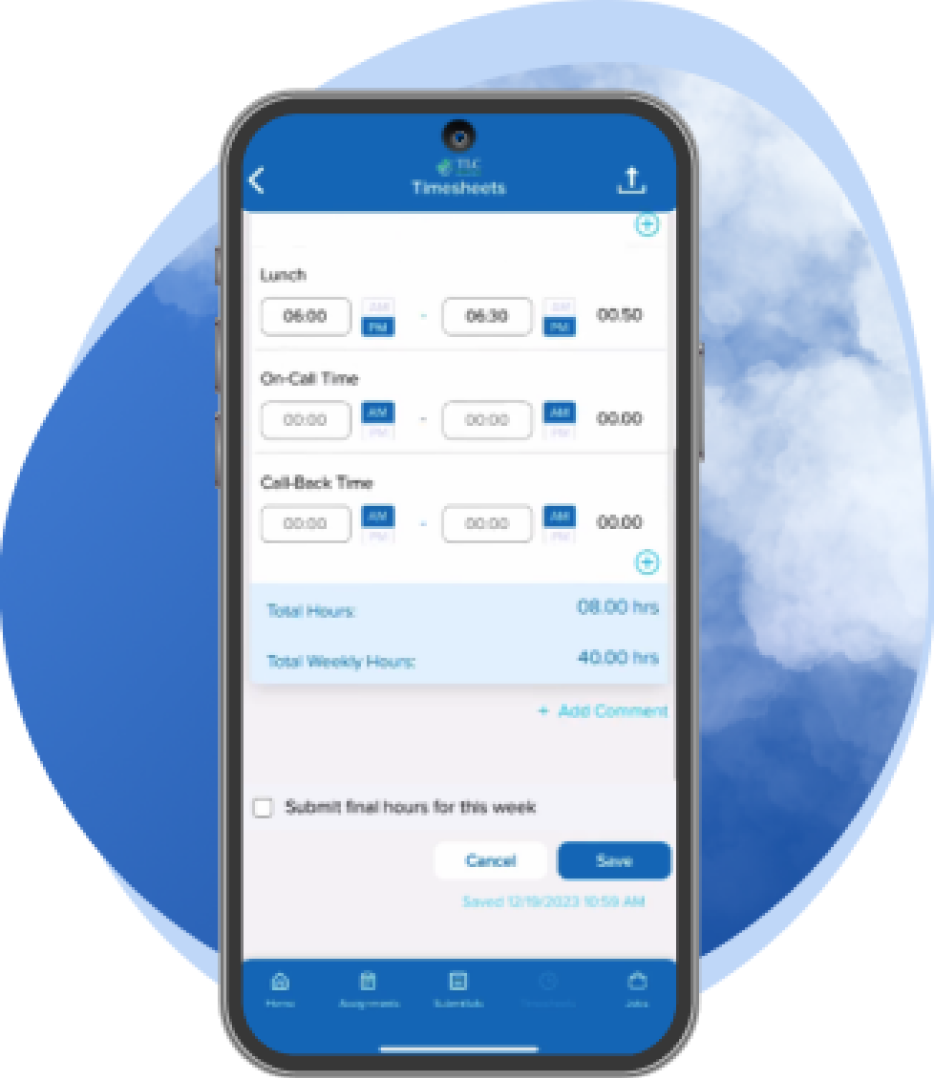
Wednesday: Work Hours: 3:00 p.m. – 11:30 p.m.
Lunch Break: 6:00 p.m. – 6:30 p.m.
Thursday: Work Hours: 7:00 a.m. – 3:30 p.m.
Lunch Break: 11:00 a.m. – 11:30 a.m.
Friday: No hours worked.
Saturday: Work Hours: 3:00 p.m. – 11:30 p.m.
Lunch Break: 6:00 p.m. – 6:30 p.m.
phone 1 phone 2
3
Save and Submit Your Hours.
Save your recorded hours.
Tap "Submit Final Hours for the Week."
Confirm your submission.
Upload Your Timesheet Photo.
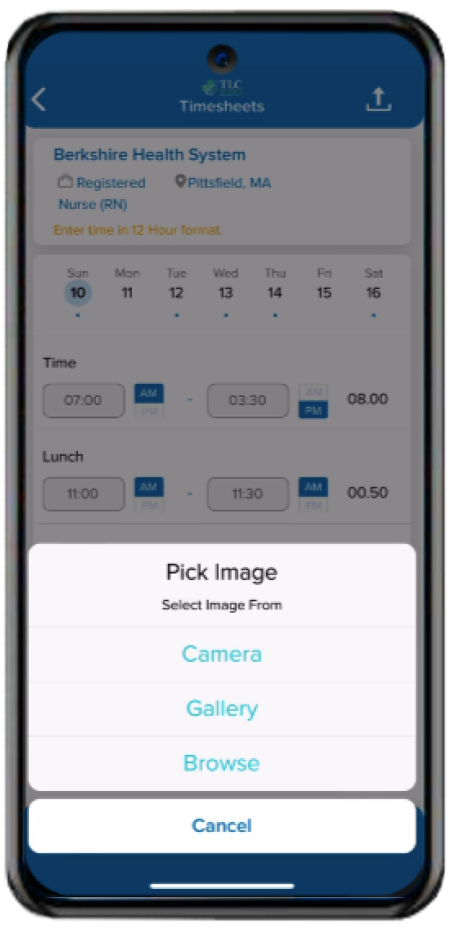
Take a photo of your completed timesheet using the app's camera or choose an existing photo from your gallery.
Tap "Upload" to submit your photo.
4
Verify Your Submission
Make sure your timesheet and photo have been uploaded successfully.
Verify that your timesheet displays the correct status: Gray — Submitted successfully. Red — Timesheet missing. Green — Current week's timesheet.
Return to the Home
Return to the Home Screen
You can check the status of your timesheet at any time by returning to the Timesheets section.
phone 3
Important Reminder
Submit your completed timesheet and supporting photo to payroll by 9:00 a.m. every Sunday to ensure timely payroll processing.
This website uses cookies to ensure you get the best experience. Privacy policy